
How to Change to 2.4GHz WiFi: Router, iPhone, Android & Smart Devices
To get the best wireless performance, it’s important to choose the right WiFi band. The two most common options are 2.4 GHz Wi-Fi and 5 GHz Wi-Fi. By changing the Wi-Fi to 2.4ghz 2.4 GHz, you'll enjoy a more stable and faster connection across your home or office. This guide will take you through step-by-step instructions on how to change WiFi to 2.4GHz. Just keep reading!
- Why Change WiFi from 5GHz to 2.4GHz?
- How to Change WiFi to 2.4GHz? 4 Methods
- How to Change WiFi to 2.4GHz on Windows, Mac, iPhone & Android?
- How to Change WiFi from 5 to 2.4GHz on Router?
- What Are Common Problems When Switching to 2.4GHz WiFi?
- Best Dual-Band WiFi Cameras That Support 2.4GHz
- FAQs
- Conclusion
Why Change WiFi from 5GHz to 2.4GHz?
Switching from 5GHz to 2.4GHz WiFi can improve connection stability, coverage range, and device compatibility. While 5GHz WiFi offers faster speeds, 2.4GHz WiFi travels farther and passes through walls more easily, making it a better choice for devices located far from your router, such as security cameras, smart plugs, and outdoor devices.
You may need to change WiFi to 2.4GHz if:
- Your smart device cannot connect to WiFi: Many smart home devices only support 2.4GHz networks during setup.
- Your device is far from the router: 2.4GHz provides better coverage across larger homes, garages, yards, and outdoor areas.
- Your connection keeps dropping: A 2.4GHz connection is often more stable through walls and obstacles.
- Your security camera is installed outdoors: Cameras placed near driveways, entrances, or detached buildings usually benefit from the longer range of 2.4GHz WiFi.
How to Change WiFi to 2.4GHz? 4 Methods
Before starting, confirm your router supports the 2.4 GHz band (almost all modern home routers do). Choose the method that best fits your setup:
Method 1: Connect directly to the 2.4 GHz SSID (Easiest)
If your router broadcasts separate network names for each frequency, connecting is instant:
-
Open Wi-Fi Settings on your device.
-
Scan the available network list for your router's name (SSID).
-
Select the network ending in
_2.4Gor_2.4GHz(e.g.,HomeNetwork_2.4G). -
Enter your password and connect.
Note: If you only see one network name listed, your router is likely combining bands using Smart Connect / Band Steering. Use Method 2 below to separate them.
Method 2: Separate 2.4 GHz and 5 GHz in Router Settings
When your router uses a single Wi-Fi name for both bands, splitting them lets you manually choose which frequency to connect to.
1. Access router admin panel: Open a web browser and type your router's IP address into the address bar (typically 192.168.1.1 or 192.168.0.1).
2. Sign in: Log in using your admin credentials (found on the router sticker if unchanged).
3. Disable Band Steering: Navigate to Wireless Settings and turn off Band Steering or Smart Connect.
4. Rename Wi-Fi bands: Assign unique names (SSIDs) to each frequency band:
-
2.4 GHz:
MyNetwork_2.4G -
5 GHz:
MyNetwork_5G
5. Save and reconnect: Save your changes. Connect your target device directly to the new MyNetwork_2.4G SSID.
Method 3: Temporarily disable the 5 GHz Band
Ideal for pairing smart home devices (e.g., smart plugs, cameras) that require a 2.4 GHz connection during initial setup:
-
Log into your router's admin panel (see Method 2).
-
Go to Wireless Settings and locate the 5 GHz tab or toggle.
-
Turn 5 GHz OFF and save changes.
-
Connect your device—it will automatically join the active 2.4 GHz frequency.
-
(Optional) Return to router settings and re-enable 5 GHz once setup is complete.
Method 4: Force 2.4 GHz on Device Level
On Windows:
-
Press
Win + Xand select Device Manager. -
Expand the Network Adapters section.
-
Right-click your Wi-Fi adapter and select Properties.
-
Switch to the Advanced tab.
-
Find Preferred Band (or Wireless Mode) in the property list and select 2.4GHz First or 2.4GHz Only.
-
Click OK to apply.
How to Change WiFi to 2.4GHz on Windows, Mac, iPhone & Android?
With modern operating systems, you can easily switch your WiFi network frequency on your computer, phones, or other smart devices.
On Windows
- Press Win + X and click Device Manager.
- Right-click the network adapter and open its properties.
- Go to Advanced, Property, Preferred Band, and select 2.4 GHz.
- Click OK to save and reconnect with your WiFi network.
On Mac
- Open the Airport Utility app on Mac and go to Graphical Overview
- Select a base station and click edit
- Click wireless then wireless options
- A dialogue will appear where you can select the WiFi Channel 2.4 GHz
- Click save then update to save these changes
On iPhone
- Open Settings → Tap Wi-Fi
- Find your WiFi network in the list
- If you see two networks (e.g.,
HomeWiFiandHomeWiFi_2.4G), tap the 2.4GHz network - Enter the password and connect
If only one network shows:
- Log in to your router settings
- Disable Smart Connect / Band Steering or rename networks (2.4G / 5G)
- Return to WiFi settings and connect to the 2.4GHz network
Tip:
- Tap the “ⓘ” next to your network → Forget This Network to avoid reconnecting to 5GHz
On Android
- Open Settings → Tap Wi-Fi / Network & Internet
- View available networks
- Select the network labeled 2.4G / 2.4GHz
- Enter the password and connect
If your phone keeps switching to 5GHz:
- Tap and hold the network → Select Forget network
- Reconnect manually to the 2.4GHz network
If only one SSID exists:
- Access router settings and split 2.4GHz and 5GHz bands
- Then reconnect to the 2.4GHz network
On Smart Home Devices
- Open the device’s companion app (camera, plug, etc.)
- Start the setup or pairing process
- When prompted, connect to your home WiFi
- Ensure your phone is already connected to the 2.4GHz network
- Select your WiFi and enter the password
Many smart home devices only support 2.4GHz, so they will not detect or connect to 5GHz networks. In contrast, Reolink WiFi cameras support dual-band connectivity, allowing you to switch between 2.4GHz and 5GHz based on your specific needs for better flexibility and performance.
How to Change WiFi from 5 to 2.4GHz on Router?
To switch your WiFi from 5GHz to 2.4GHz, log in to your router’s admin panel and separate or enable the 2.4GHz wireless band. Most modern dual-band routers support both frequencies, but they may combine them under one WiFi name (SSID) using features like Smart Connect or Band Steering.
Follow these steps:
Step 1: Log In to Your Router Settings
- Connect your device to your home WiFi.
- Open a web browser and enter your router’s IP address, commonly:
192.168.1.1192.168.0.1
- Enter your router username and password to access the admin dashboard.
If you don’t know your login details, check the label on your router or contact your internet provider.
Step 2: Open Wireless or WiFi Settings
After logging in:
- Go to Wireless Settings, WiFi Settings, or Network Settings.
- Find options related to:
- 2.4GHz Band
- 5GHz Band
- Smart Connect
- Band Steering
If both bands use the same WiFi name, disable Smart Connect/Band Steering to manage them separately.
Step 3: Create a Separate 2.4GHz WiFi Network
Rename the networks so you can easily identify each band:
- 2.4GHz WiFi:
HomeWiFi_2.4G - 5GHz WiFi:
HomeWiFi_5G
Save the settings and wait for your router to restart.
Step 4: Connect Your Device to the 2.4GHz Network
After the router restarts:
- Open your device’s WiFi settings.
- Select the network labeled 2.4G or 2.4GHz.
- Enter your WiFi password.
- Confirm the device is connected to the 2.4GHz band.
What to Do If Your Router Does Not Show a 2.4GHz Option
Try these troubleshooting steps:
- Check whether your router supports dual-band WiFi.
- Update your router firmware.
- Restart your router and check the wireless settings again.
- Use your internet provider’s mobile app if your router is managed by an ISP (such as Xfinity, AT&T, or Verizon).
Note: You cannot convert a 5GHz network into a 2.4GHz network. Instead, you enable the router’s built-in 2.4GHz band and connect your device to that frequency.
What Are Common Problems When Switching to 2.4GHz WiFi?
Here are the most common problems users encounter when switching to 2.4 GHz, along with why they happen and how to fix them:
1. Severe Interference & Network Congestion
Your connection feels unstable, drops randomly, or experiences severe lag spikes even with full Wi-Fi bars.
The 2.4 GHz frequency is extremely crowded. It only has 3 non-overlapping channels (1, 6, and 11). Additionally, non-Wi-Fi household items operate on this exact frequency—including microwaves, Bluetooth devices, baby monitors, cordless phones, and wireless game controllers.
Fix: Access your router settings and manually set your 2.4 GHz Wi-Fi channel to 1, 6, or 11 (whichever is least congested in your area), rather than leaving it on "Auto."
2. Noticeably Slower Speeds & Latency
Web pages load slowly, 4K video streams buffer, and online games lag.
2.4 GHz prioritizes range over speed. Real-world speeds on 2.4 GHz rarely exceed 50–100 Mbps, compared to 5GHz which can easily reach 500–1000+ Mbps.
Fix: Reserve the 2.4 GHz band for long-range, low-bandwidth devices (smart plugs, outdoor security cameras, smart speakers). Keep laptops, smartphones, and gaming consoles on 5 GHz or Ethernet whenever possible.
3. Smart Home Setup "Device Not Found" Errors
When setting up a smart plug, bulb, or security camera, the companion app fails to find or pair the device.
Most smart home devices only support 2.4 GHz. If your smartphone is connected to the 5 GHz band during setup, the setup app won't be able to communicate with the smart device on the local network.
Fix: Temporarily turn off 5 GHz in your router settings (or "Forget" the 5 GHz network on your phone) while setting up new smart home equipment.
4. Devices Keep Automatically Switching Back to 5GHz
You manually connect your phone or laptop to the 2.4 GHz network, but after a short time, it flips back to 5 GHz.
Operating systems (iOS, Android, Windows, macOS) are programmed to automatically prefer 5 GHz or 6 GHz because they offer faster speeds and less interference.
Fix: Go to your device’s Wi-Fi settings, select your 5 GHz network, and turn off "Auto-Join" or "Connect Automatically."
5. Router "Smart Connect" Overrides Your Choice
You try to select the 2.4 GHz network, but only one Wi-Fi name appears on your device list.
Modern routers use Band Steering / Smart Connect to merge 2.4 GHz and 5 GHz into a single network name (SSID), automatically routing devices to what the router thinks is best.
Fix: Log into your router's admin panel, turn off Smart Connect / Band Steering, and assign separate names to each band (e.g.,
MyWi-Fi_2.4GandMyWi-Fi_5G).
Best Dual-Band WiFi Cameras That Support 2.4GHz
While 5 GHz offers faster data speeds, 2.4 GHz provides superior long-range penetration through walls—making dual-band support essential for stable outdoor home security. Here are 3 top-tier dual-band Wi-Fi cameras with reliable 2.4 GHz performance:
1. Reolink Argus 4 Pro: Best Overall for Wide Coverage & Color Night Vision
-
Video Quality: 4K UHD (8MP)
-
Coverage: Ultra-wide 180° blindspot-free view
-
Power Source: Battery / Solar-powered
Key Features:
-
Wi-Fi 6 Dual-Band: Operates on both 2.4 GHz and 5 GHz for smooth, low-latency 4K streaming.
-
ColorX Night Vision: Captures full-color daytime-like imagery in low-light conditions without needing harsh spotlights.
-
Smart Detection: Advanced PIR detection for people, vehicles, and pets.
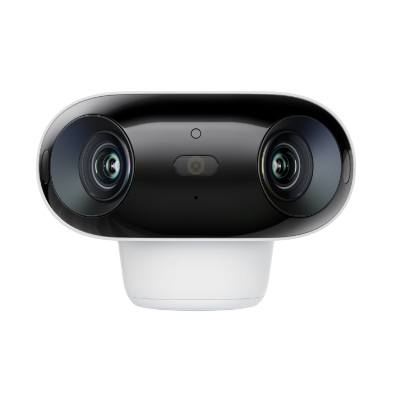
4k 180° Wire-free Color Night Vision Camera
4K UHD 180° Blindspot-free View; Color Vision Day and Night; 30% More Battery Life; Dual-band Wi-Fi 6; Smart detection.
2. Reolink Argus PT Ultra: Best Battery-Powered Pan & Tilt Camera
-
Video Quality: 4K 8MP Ultra HD
-
Coverage: 355° Pan & 140° Tilt
-
Power Source: Battery / Solar-powered
Key Features:
-
Flexible Coverage: Remotely rotate and tilt the lens to monitor vast yards or driveways with preset guard points.
-
Auto-Tracking & Smart Alerts: Automatically tracks moving subjects while triggering spotlights and a siren to deter intruders.
-
All-Weather Security: Weatherproof build with local microSD storage up to 512GB.
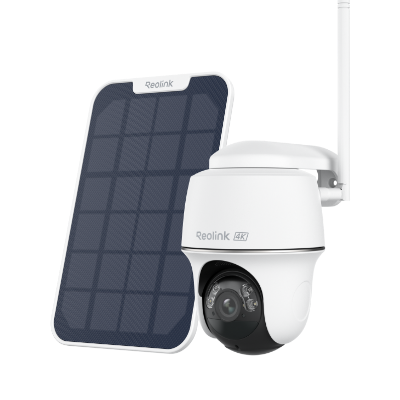
4k 100% Wire-Free PT Camera
4K 8MP Ultra HD; 5GHz/2.4GHz WiFi; Rechargeable Battery & Solar Powered; 355° Pan & 140° Tilt; IP65 Certified Weatherproof; Clear Night Vision; 2-Way Audio; 122° Wide Viewing Angle.
3. Reolink TrackFlex Floodlight Wi-Fi: Best for Perimeter Lighting & Active Defense
-
Video Quality: 4K Dual-Lens with 6x Hybrid Zoom
-
Lighting: 3,000 Lumens adjustable floodlight (warm to cool white)
-
Power Source: Hardwired / AC Power
Key Features:
-
Dual-Lens & Dual-View: Displays both a wide-angle overview and a zoomed-in detail view on a single screen.
-
Periphery Detection: Out-of-view sensors detect motion in blind spots and trigger the camera to swivel toward the activity automatically.
-
Local AI Search: Quickly filter stored footage by specific prompts (e.g., "person in red," "vehicle") without subscription fees.
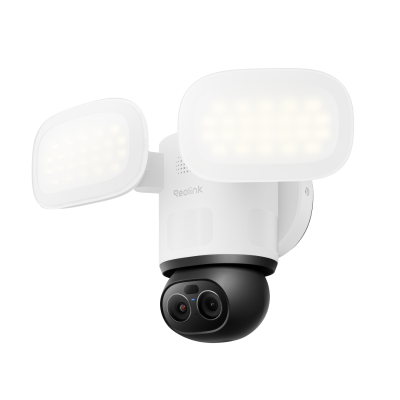
Smart 4K 360° Coverage Wi-Fi Floodlight Security Camera
Local AI Video Search, 4K 8MP Ultra HD, 360° Coverage View, 6X Hybrid Zoom, Dual-Color Floodlight.
FAQs
How do I enable 2.4 GHz on my WiFi?
To enable 2.4 GHz WiFi, log in to your router settings, turn on the 2.4 GHz band, and connect your device to the 2.4 GHz network. If your router combines 2.4 GHz and 5 GHz under one WiFi name, disable Smart Connect/Band Steering and create separate networks.
Do devices automatically switch between 2.4 and 5 GHz?
Yes. Many modern routers automatically switch devices between 2.4 GHz and 5 GHz using Smart Connect. However, some smart home devices and security cameras may require a dedicated 2.4 GHz connection during setup.
What happens if I change Wi-Fi from 5GHz to 2.4 GHz?
Switching to 2.4 GHz usually gives you longer range, better wall penetration, and a more stable connection. The trade-off is slower speeds compared with 5 GHz. It is often better for security cameras, smart devices, and outdoor installations.
Can I use both 2.4 and 5GHz at the same time?
Yes. Most dual-band routers support both frequencies at the same time. Use 2.4 GHz for longer-range devices like cameras and smart home products, and 5 GHz for high-speed activities like streaming and gaming.
Conclusion
The 2.4 GHz WiFi network standard has been around for a long time, and the reason behind that is its reliable connection over a long distance. While the other standards may be faster, they do not provide such better distance coverage, and that might be the reason why you want to switch to 2.4 GHz WiFi.
With the guides covered here, we hope that now you can easily know how to change WiFi to 2.4GHz network standard if your device supports it.
Search
Subscribe for the Latest Updates
Security insights & offers right into your inbox